- Home
- Claude to PDF
Save a Claude chat as PDF
A PDF you would actually send: the chat’s title, numbered pages, properly typeset formulas, highlighted code, tables and the images Claude made — in about five seconds.
How to save a Claude chat as PDF
- Install DocMyChat for Chrome. There is no account to create.
- Open the chat on claude.ai and click Export next to Share. To save only one answer, use the export icon under that reply instead.
- Choose PDF. A clean preview of the document opens in a new tab, followed by Chrome’s print dialog.
- Set Destination to “Save as PDF” and click Save. That’s it.
One tip, once: in the print dialog open More settings and untick Headers and footers. Otherwise Chrome stamps the date and a page address on every sheet. Chrome remembers the choice.
Why not just press Ctrl+P on claude.ai?
claude.ai is a web app, so printing it prints the app. The sidebar, the message box and the buttons come along, the chat column is squeezed into the page, and anything open in the artifact panel is left out. What you get looks like a screenshot of a website rather than a document.
DocMyChat doesn’t print the page. It reads the conversation itself and lays it out again as a document: a title, a line with the date, model and number of messages, then each turn labeled You and Claude. That page is what goes to the printer.
What’s inside the PDF
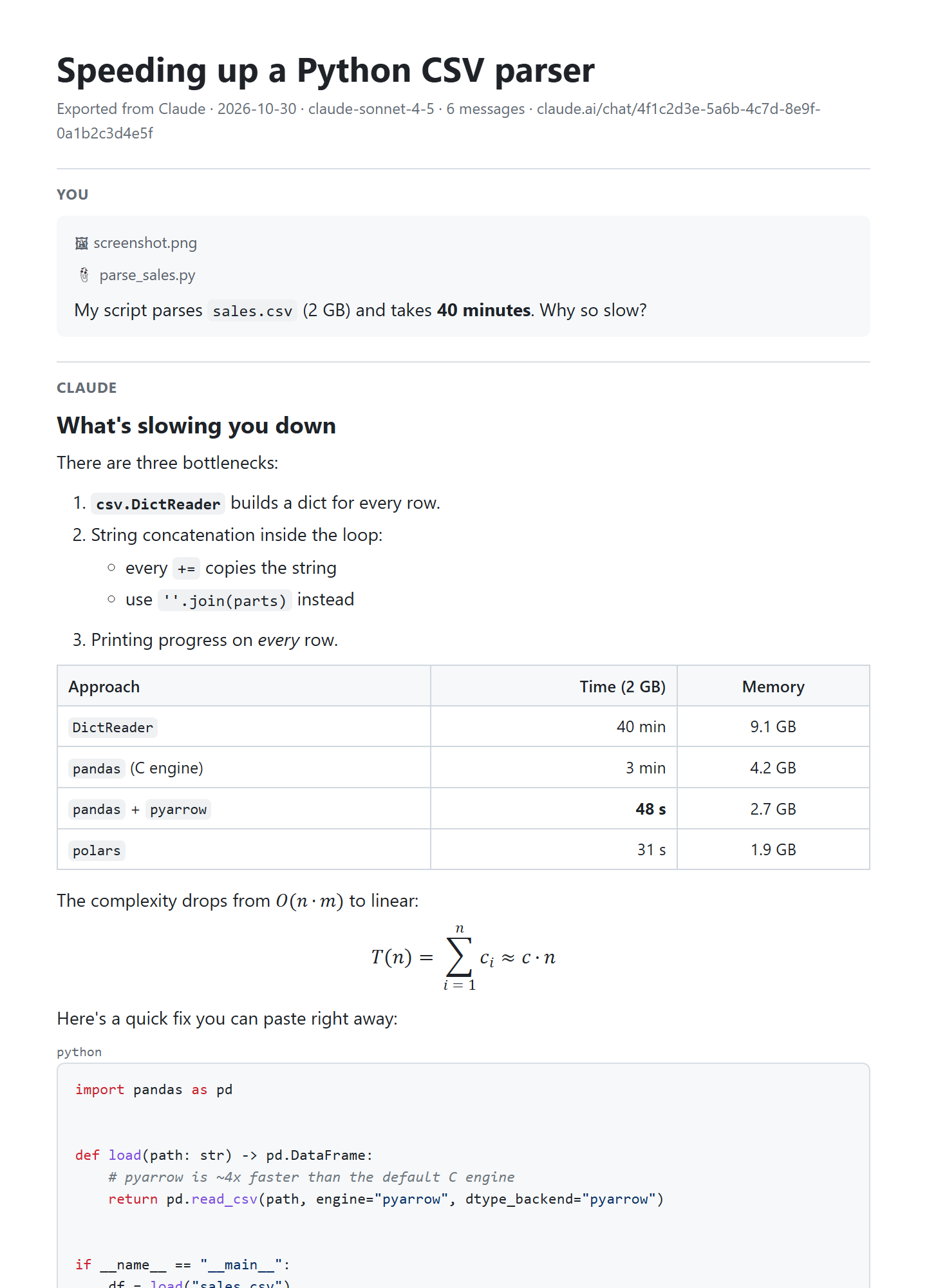
- Formulas are typeset as math, not left as LaTeX source, so
\sum_{i=1}^{n}prints as a real summation. - Code keeps its syntax highlighting, and long lines wrap instead of running off the edge of the page.
- Tables stay tables, with the column alignment Claude used.
- Images you uploaded and charts Claude produced appear where they were in the chat. SVG graphics stay vector, so they are sharp at any zoom.
- Mermaid diagrams are drawn as pictures.
- Artifacts — the code and documents Claude wrote — are collected in an appendix at the end, each with a note of how many versions it went through.
- Page numbers sit in the corner of every page: 3 / 12.
Interactive widgets can’t live on paper, so the PDF marks where they were and says to open the chat to use them. Pages Claude published get a link.
Options worth knowing
Three switches in the export menu change what goes into the file. They are remembered for next time.
- Include artifacts adds the appendix with the files Claude wrote. On by default.
- Include Claude’s thinking adds the reasoning Claude showed before answering, set apart from the answer. Off by default.
- Add timestamps puts the time of each message next to its label. Off by default.
Save a single Claude reply as PDF
Often only one answer matters — a summary, a plan, a letter. Hover the reply and click the export icon next to Claude’s Copy button. The PDF then contains just that reply, titled after the chat, with a line saying it is a Claude reply and when it was written.
Edited messages and branches
When you edit a question or ask Claude to retry, the chat branches. DocMyChat exports the branch you are looking at — the same answers you see on screen, in the same order — not an older version.
Questions
Is the text in the PDF selectable and searchable?
Yes. The PDF is made from real text, not screenshots, so you can search it, copy from it and read it with a screen reader.
Can I save a Claude chat as PDF without an extension?
You can print the page with Ctrl + P, but the interface comes along and artifacts are left out. Claude’s own export sends your whole account history as data files, not a PDF. See all the ways to export a chat.
Do long chats work?
Yes. A long chat simply makes a longer PDF. Very large images may be left out of a PDF to keep it printable; DocMyChat tells you when that happens.
Which paper size is used?
The one you choose in Chrome’s print dialog, A4 or Letter. The layout adapts to it.
Does it work on a phone?
No. DocMyChat is a Chrome extension for desktop. Open the chat on claude.ai in Chrome on your computer.